
Two-Factor Authentication
To increase security and protect your data more effectively, we have implemented Two-Factor Authentication (2FA) on our Portal.
This extra layer of protection is highly recommended and offers flexibility in choosing your second-factor method.
You can set up 2FA in two simple ways:
- Email: A temporary code will be sent to your registered email address each time you access the site.
- OTP (Authenticator App): Use an app like Google or Microsoft Authenticator to generate a dynamic code (One-Time Password) on your mobile phone. This option offers maximum security and convenience.
We strongly recommend setting up the second factor immediately to ensure the continuous protection of your account.
Follow the step-by-step instructions below to successfully log in.
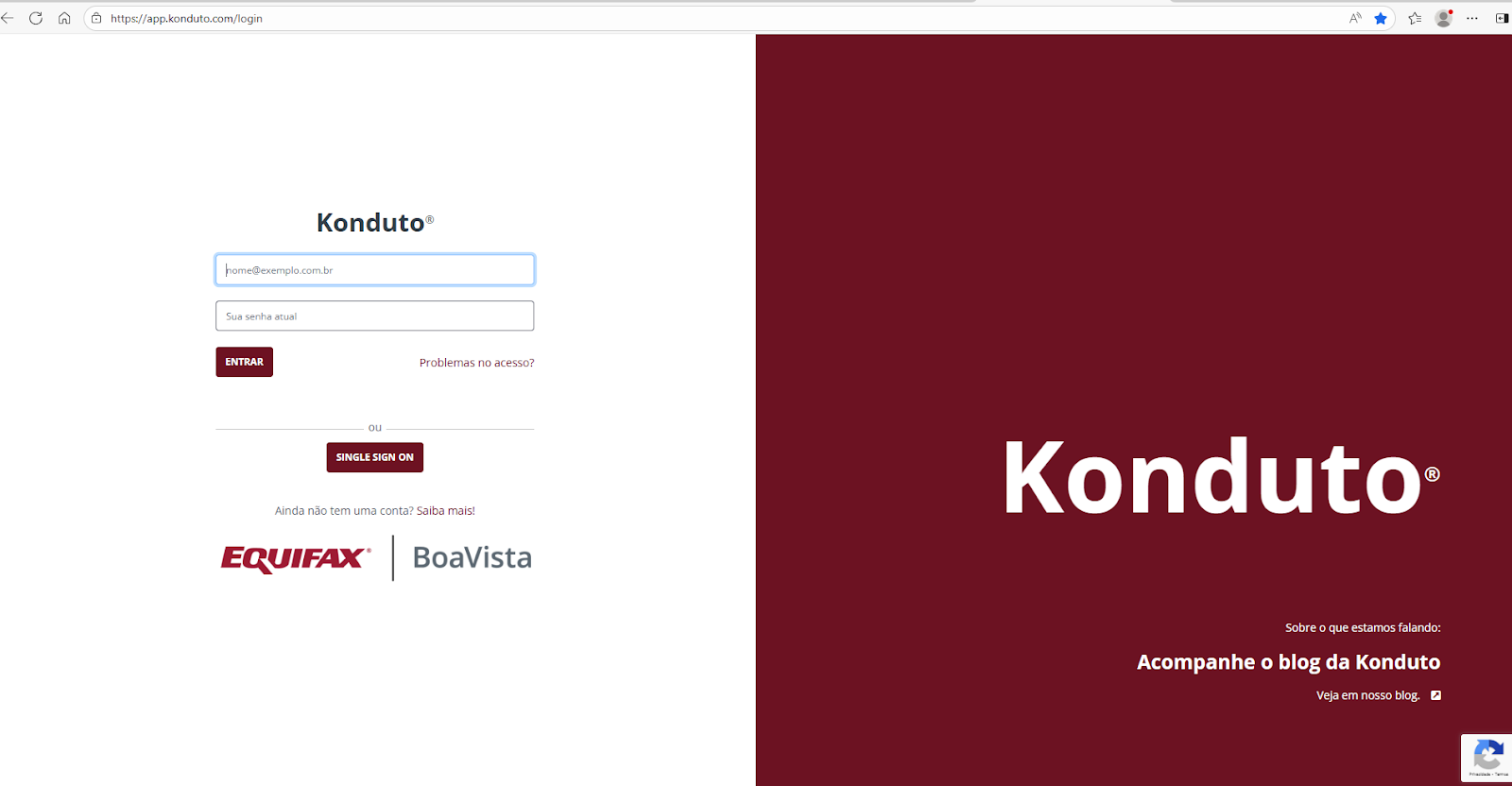
- Enter your username and password on the login screen and click the login button.
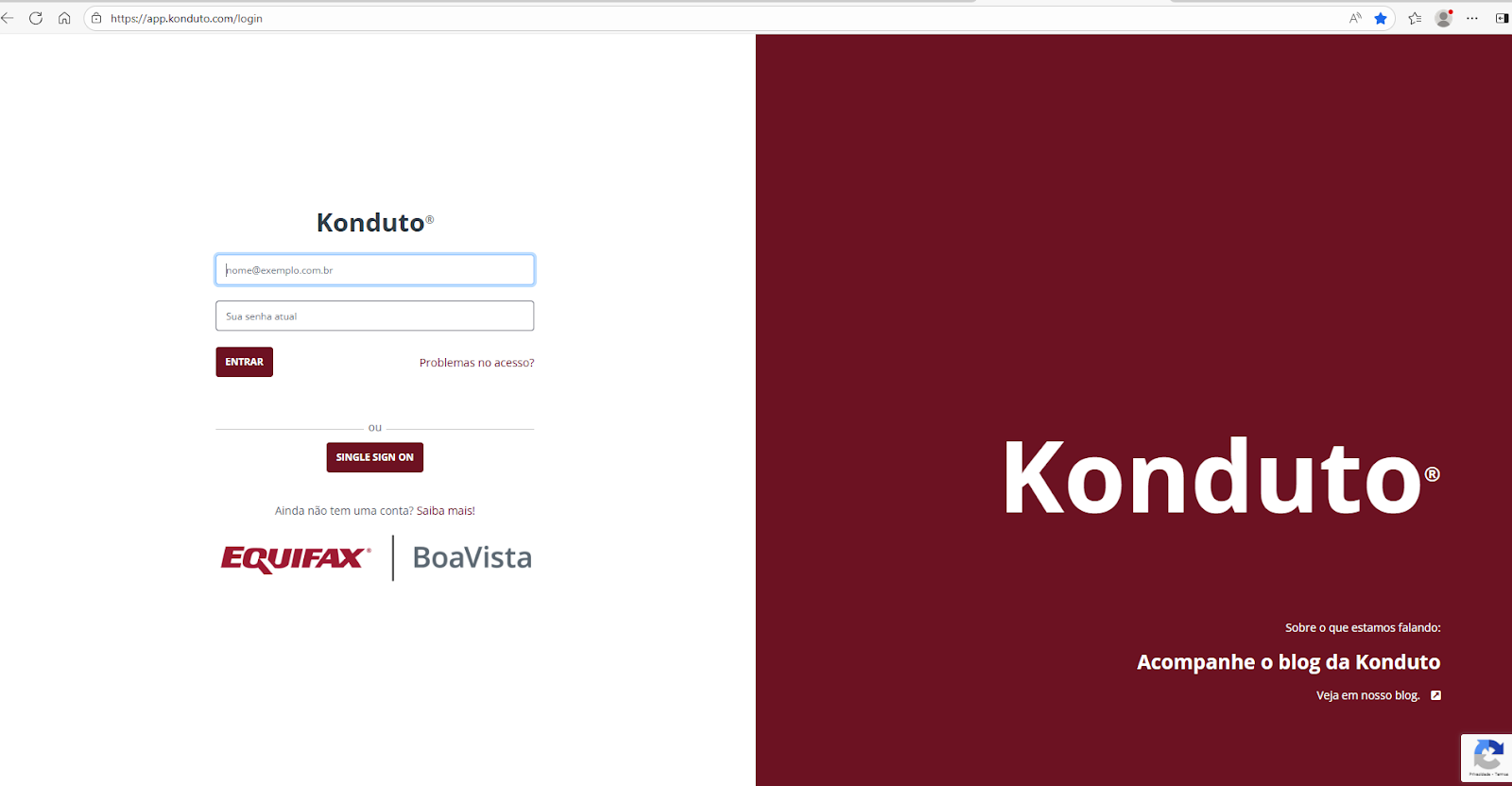
- The following screen will then be displayed, requesting the authentication code
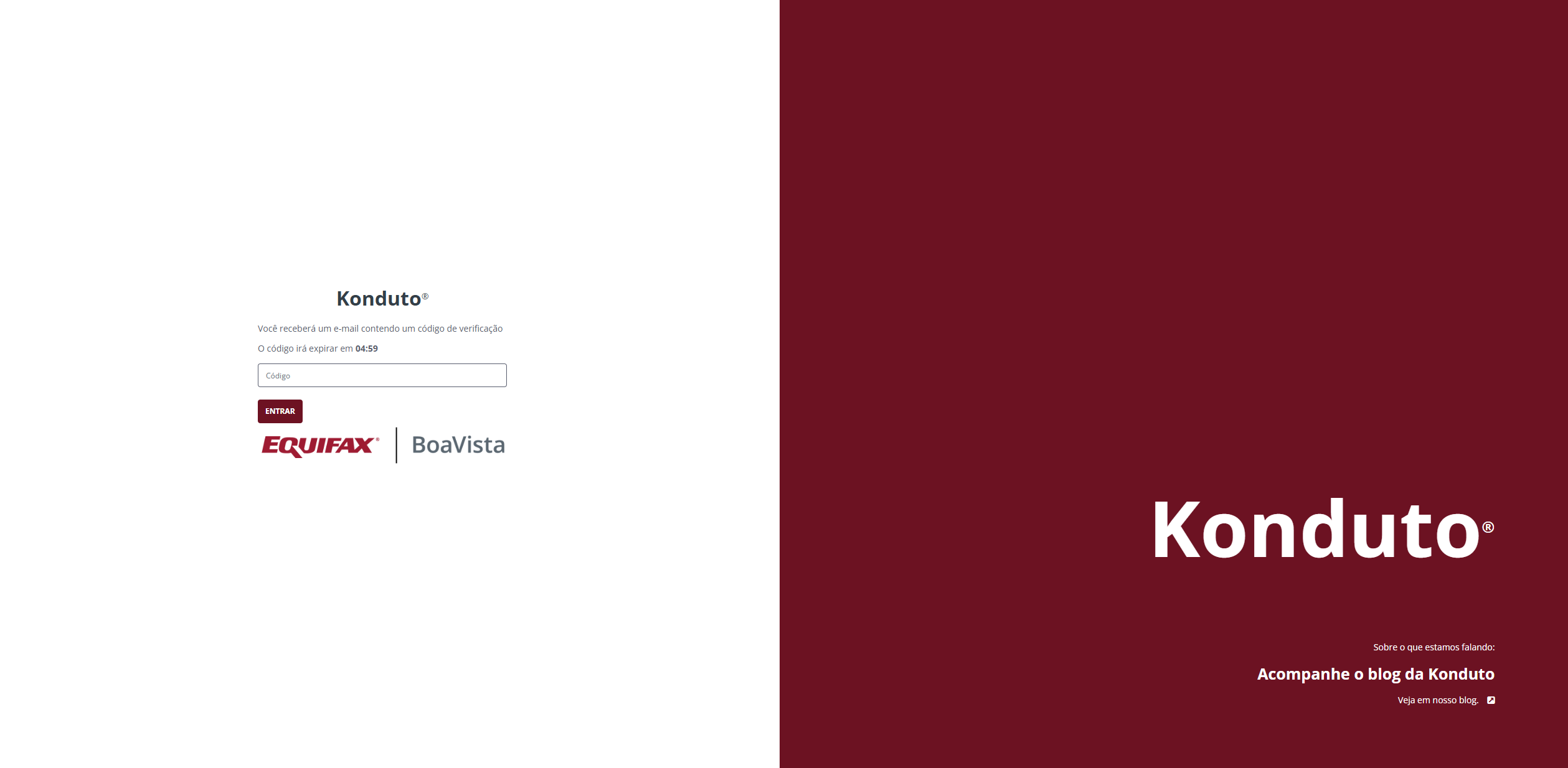
- The requested code will be sent to your email address from suporte@konduto.com, as shown below:

- Enter the authentication code on the screen that appears, click "enter," and your access will be successful.
Important information:
- If an incorrect code is entered, the process of sending the authentication code to the email address must be restarted.
- The sent code expires in 5 minutes. After this time, the process of sending the authentication code to the email address must be restarted.
OTP
Prerequisites (Download Your App)
Before starting, you must have an authenticator app installed on your smartphone. We recommend:
- Google Authenticator
- Microsoft Authenticator
- Authy
- Any other app compatible with the TOTP standard.
Accessing Authentication Settings
- Log in to the Konduto Portal.
- Access your User Profile (top right corner).
- Look for and click on the new tab/option called "Authentication".
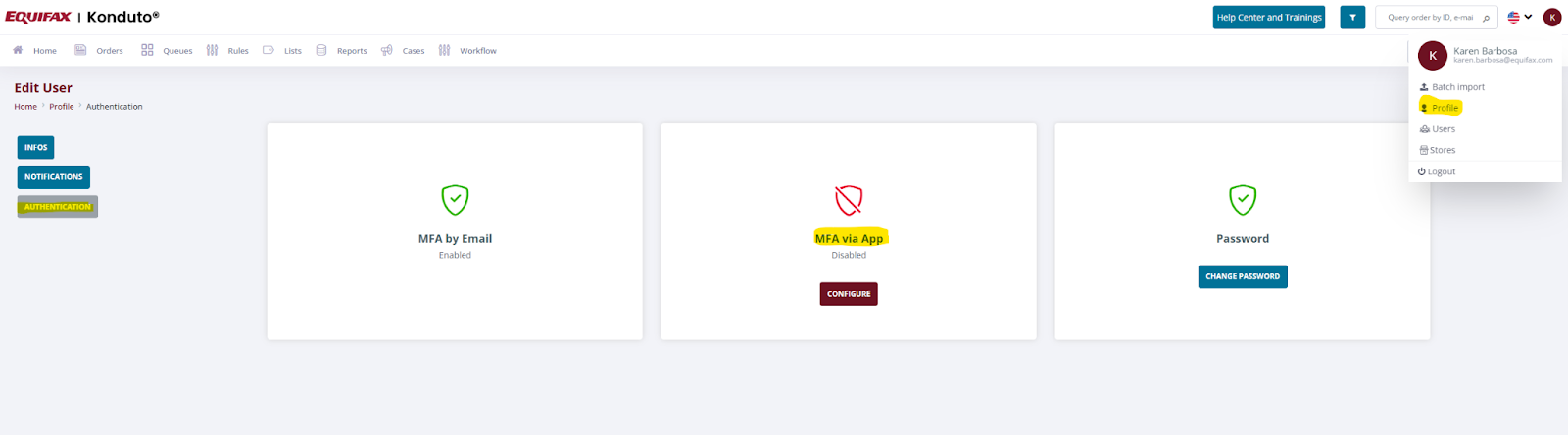
Adding the New TOTP Method
- On the Authentication screen, locate the "MFA by Application" section.
- Click the "Configure" button.
- The system will display a screen with:
- A large, unique QR Code.
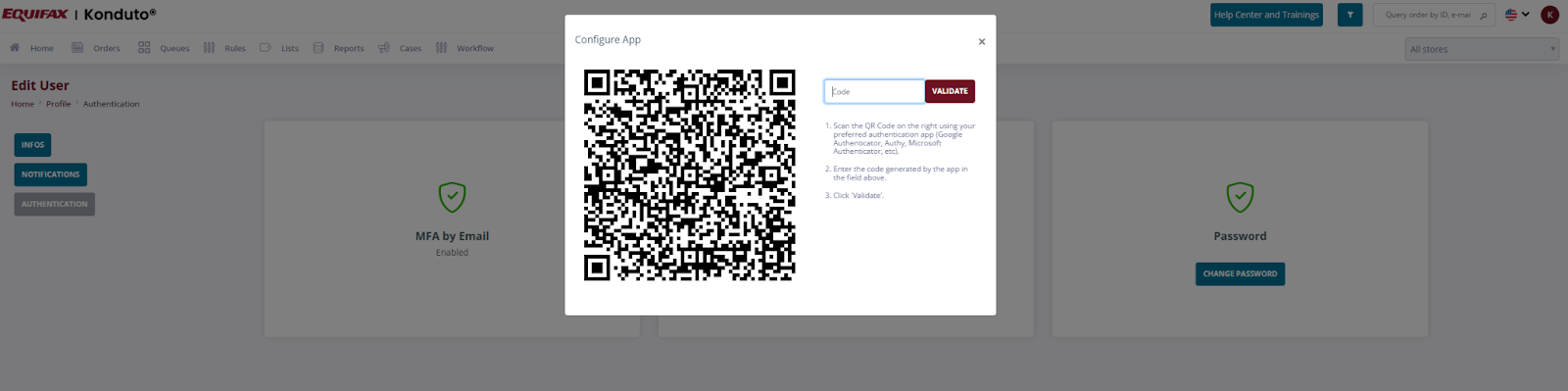
Synchronization with the App
- Open the authenticator app on your smartphone (e.g., Google Authenticator).
- Tap the button to add a new account (+).
- Choose the option "Scan a QR code" (recommended method).
- After scanning, the app will display a new entry for the Konduto Portal, which will start generating 6-digit codes that change every 30 seconds.
Validation and Activation
- Return to the Konduto Portal screen.
- In the validation field, enter the first two 6-digit codes currently displayed by your authenticator app and your password.
- Click "Validate and Activate."
Your TOTP method is now configured and active! The next time you log in, the code from your authenticator app will be requested.